Wednesday, 23 September 2020

JBL SB300, JBL SB230 Powered sound bar with wireless powered subwoofer schematic


SB300 POWERED SOUNDBAR SPEAKER

Low-frequency transducer: Two 2" (51mm) cones per channel, video shielded

High-frequency transducer: One 1" (25mm) dome per channel, video shielded

Amplifier power: 30 watts per channel

Audio controls: Volume, surround mode

Connections: Optical digital (TOSLINK™) input, stereo analogue (RCA-type) inputs

Power requirement: 120V – 240V, 50Hz/60Hz, 80W

Power consumption: 1W standby; 80W maximum

Dimensions (H x W x D): 3-5/8" x 45-3/4" x 3" (92mm x 1162mm x 76mm)

Weight: 5.5 lbs. (2.5kg)

SB300 SUBWOOFER

Low-frequency transducer: 8" (200mm) cone, down-firing

Enclosure type: Ported (down-firing)

Amplifier power: 100 watts

Frequency response: 42Hz – 200Hz (–3dB)

Audio controls: Level, phase, cut-off frequency

Connections: LFE input, left and right RCA line-level inputs

Power requirement: 120V – 240V, 50Hz/60Hz, 160W

Power consumption: 1W standby; 160W maximum

Dimensions (H x W x D): 19" x 14-1/4" x 14-1/4" (483mm x 362mm x 362mm)

Weight: 24.5 lbs. (11.1kg)

TURNING THE SOUNDBAR ON AND OFF

Set the sound bar’s Power switch to the “On” position.

Press the Power button on either the sound bar or the remote to turn the sound bar on. To put the sound bar in the Standby mode, press either Power button while the sound bar is on.

If you do not press the Power button, the sound bar will automatically go into the Standby mode approximately 15 minutes after the audio signal ceases. NOTE: If you have put the sound bar into the Standby mode by pressing the Power button, you must manually turn it on by pressing the Power button again. If the sound bar has automatically gone into the Standby mode 15 minutes after the audio signal has ceased, it will automatically turn itself on when it receives an audio signal at either the analogue (Aux) input or the optical digital input.

TURNING THE SUBWOOFER ON AND OFF

Set the subwoofer’s Power switch to the “On” position. The subwoofer will automatically attempt to establish pairing with the sound bar (the subwoofer’s LED will flash blue). If pairing is not established within one minute, the subwoofer will enter the Standby mode (its LED will turn amber). If pairing is established, the subwoofer will turn on (its LED will light blue continuously).  The subwoofer will remain on for approximately one minute after the sound bar enters the Standby mode, or for approximately 15 minutes

after the audio signal ceases.

If you will be away from home for an extended period of time, or if you will not be using the system for an extended period, set the subwoofer’s Power switch to the “Off” position.

PAIRING THE UNITS FOR WIRELESS OPERATION

After turning the sound bar and subwoofer on for the first time, you will need to “pair” the subwoofer and sound bar so they both operate at the same wireless frequency. To pair the units, press the Wireless Pairing switches on both units within 30 seconds. The units will communicate with each other and operate at the same frequency.

NOTE: The maximum wireless operating distance between the sound bar and subwoofer is approximately 50 feet (15.3m).


ADJUSTING THE SYSTEM’S VOLUME

Press the sound bar’s or remote’s Volume Up and Down buttons to raise and lower the system’s volume one step at a time. Hold down the buttons to continuously raise or lower the volume.

MUTING THE SYSTEM

Momentarily press the sound bar’s Power button or press the remote’s Mute button to mute the system. (The Power Indicator flashes blue.)  Momentarily press the sound bar’s Power button or press the remote’s Mute button again to un-mute the system. (The Power Indicator turns to a steady blue.)

SURROUND MODE BUTTONS

These buttons switch the sound between normal stereo (the Surround Mode Indicator lights white) and 3-D Surround (the Surround Mode Indicator lights blue). The 3-D Surround setting will produce a complete surround-sound experience for anyone sitting in front of and several feet away from the sound bar. Although it is particularly effective when watching movies, you can also try the 3-D Surround setting for music

SUBWOOFER LEVEL KNOB

Use the subwoofer’s Level knob to balance the bass with the rest of the sound. Play music or movies that you are familiar with, and adjust the subwoofer’s Level knob so the bass sounds balanced on both music and films. Listen to several different music recordings and film soundtracks that contain strong bass passages, and find a setting for the Level knob that doesn’t over-emphasize the bass or make it sound weak

Once you find a setting for the subwoofer’s Level knob that balances the bass with the rest of the sound, you shouldn’t have to change it

SUBWOOFER CUTOFF CONTROL

The subwoofer’s Cut-off control adjusts the subwoofer’s cut-off between 40Hz and 200Hz. The higher you set the Cut-off control, the higher in frequency the subwoofer will operate and the more its bass will “overlap” that of the sound bar. This adjustment helps achieve a smooth transition of bass frequencies between the subwoofer and the sound bar for a variety of different rooms and subwoofer locations.  To set the Cut-off control, listen for the smoothness of the bass. If the bass seems too strong at certain frequencies, try a lower Cut-off control setting. If the bass seems too weak at certain frequencies, try a higher Cut-off control setting.

SUBWOOFER PHASE SWITCH

This switch determines whether the subwoofer’s piston-like action moves in and out in phase with the speakers in the sound bar. If the subwoofer were to play out of phase with the sound bar speakers, some of the sound waves produced by the sound bar and subwoofer could be cancelled out at some frequencies, reducing bass performance and sonic impact. This phenomenon depends in part on the relative placement of the sound bar and subwoofer in the room.  Although there is no absolutely correct setting for the Phase switch, in most cases it should be left in the “0°” position. When the subwoofer is properly in phase with the sound bar speakers, the sound will be clearer and have more impact. It will make percussive sounds like drums, piano and plucked strings sound more lifelike. The best way to set the Phase switch is to listen to music that you are familiar with and adjust the switch so that drums and other percussive sounds have maximum impact.

Schematic diagram


Thursday, 10 September 2020

Daewoo DTQ 29U1SC, Daewoo DTQ 29U5SC – How to enter the service mode, adjustments, full schematic and more – Chassis CN 794N

Used ICs: LC86386A 51S2-System control, 24C16B, 115 V F025AR-Tuner, MR2540-SMPS controller STR, LA7848-Vertical scan output IC, VDP3130Y-Luminance Chroma jungle, MSP3420G B8, TDA8946-Audio output IC, TEA5101B-Video output IC (CRO controller), FF A9404 8L-FBT, 2SD2578-Horizontal Out Transistor,

How to enter the service mode using the user remote control.

• Turn the set on.

• Direct the remote control to the reception window of TV.

• Push buttons of remote control in sequence as follows.

[1 > MUTE > DISPLAY > MUTE ]

• Then, the screen will appear as follows.

S2      SCRN

S5      SND

S6      GEO

S7      VDP

S8     W/B

S9     DP

S12    FACT

Using the channel up or channel down button, select the item you wish to adjust.

(The colour of selected item turns into the RED.)

• Press the volume up or down button to enter in the service mode you wish to adjust.

How to memorize the adjusted values in the service mode.

• Press the DISPLAY button the state which the screen is displaying each of service menus after all adjustments are complete each of all service menu.


Screen adjustment (S2)

• Enter the service mode and select service adjustment S2.

• You can see the one horizontal line on the screen.

• Adjust the Screen Control Volume (located on FBT) so that the horizontal line on screen just disappeared.

• Press the volume up or down button to exit in the screen adjustment mode.

[IN THE SCREEN ADJUSTMENT MODE, DONT PRESS OTHER BUTTONS EXCEPT VOLUME UP OR DOWN BUTTON.]

Focus adjustment

• Turn in a local station and adjust the Focus Control knob (located on FBT) for best picture details at high light condition.

Geometric adjustments (S6)

• Select service adjustment S6

• You can see the OSD as shown in below.

Digital pre-set (DP) adjustments (S9)

Sub brightness adjustment

Receive a good local channel.

• Enter the service mode and select service adjustment S9.

• You can see the OSD as shown in below.

• Select Sub brightness item, adjust Sub brightness data value to obtain normal brightness level.

• Press the DISPLAY button to memorize the data.

CONTRAST

• Fixed value = 8

TINT

• Fixed value = 170

COLOR

• Fixed value = 0

Factory outgoing mode (S12 : FACT)

• If you select the S12, then the set becomes factory outgoing status.

• You can see the OSD “outgoing OK.

Full schematic

TEA5101B Video output IC and the schematic

IC pin configuration

PWB top and bottom views


Wednesday, 8 July 2020

Sony HOME AUDIO SYSTEM MHC-V71D disassembly, test modes, SMPS board fault diagnosis

How to disassemble Sony MHC V71 home audio system, test modes, how to take the disc out at emergency, Power board fault diagnosis

US Model, Canadian Model-MHC-V71

AEP Model, UK Model, E Model, Australian Model-MHC-V71D

Destination setting method
The destination information isn’t written in the MOTHERBOARD board for the service.
Therefore, when the MOTHERBOARD board is replaced, be sure to perform the destination setting (Important work).

Note 1: The initial setting destination of the MOTHERBOARD board for the service is temporary set as “LATIN”. The message “LATIN (T)” is displayed on the screen display panel.
Note 2: When distinguishing the destination of the product, refer to the “MODEL IDENTIFICATION”
Note 3: If destination setting isn’t performed, it is possibility to occur the defect to each operation of this unit.
Note 4: Destination would be locked if it has changed for 5 times.

Touch two touch keys of the [FIESTA] and { TUNING + >>| } simultaneously for 10 seconds during the demonstration mode.
2. It enters the destination setting mode, the message "D XXXXX" is displayed on the screen display panel.
Note 5: If the message "DESTLOCK" is displayed on the screen display panel, touch the [>] touch key to release from this mode.
Because the destination is locked, and it cannot change the destination..

3. Touch [ 0+ ] / [ - ] touch key to select the destination based on the set's country.

4. Touch [ > ] touch key to confirm the selection.
5. "RESET" appears on the screen display panel. After that, "SONY “appears on the screen display panel. The system automatically turn on and off once. Please be sure that the system stay at demo mode finally before switch off the power supply.
6. Mode in "MODEL, DESTINATION AND VERSION DISPLAY MODE" again to confirm on the model & destination.


Power output and total harmonic distortion:
(US models only)
With 4 ohm loads, both channels driven, from 400 Hz – 20,000 Hz; rated 60 watts per channel minimum RMS power, with no more than 0.7% total harmonic distortion from 250 milliwatts to rated output.

Speaker section
3-way, Double Bass Reflex Speaker unit:
Tweeter L/R: 50 mm (2 in), cone type
Midrange L/R: 120 mm (4 3/4 in), cone type
Woofer: 300 mm(11 7/8 in), cone type

Supported audio formats
Supported bit rate and sampling frequencies:
MP3:
32/44.1/48 kHz, 32 kbps –
320 kbps (VBR)
AAC:
44.1 kHz, 48 kbps – 320 kbps
(CBR/VBR)
WMA:
44.1 kHz, 48 kbps – 192 kbps
(CBR/VBR)
WAV:
44.1/48 kHz (16 bit)

Supported video formats (V71D)
Xvid:
Video codec: Xvid video
Bit rate: 4.854 Mbps (MAX)
Resolution/Frame rate:
720 × 480, 30 fps
720 × 576, 25 fps (except for Latin American model)
Audio codec: MP3

MPEG4:
File format: MP4 File Format
Video codec: MPEG4 Simple
Profile (AVC is not compatible.)
Bit rate: 4 Mbps
Resolution/Frame rate:
720 × 480, 30 fps
720 × 576, 25 fps (except for Latin
American model)
Audio codec: AAC-LC (HE-AAC is
not compatible.)
DRM: Not compatible.

When disassembling the set, use the following jig (for front panel removal).
Part No.: J-2501-238-A JIG FOR SPEAKER REMOVAL

When the SENSOR board is defective, exchange the SERVICE, TOP PANEL ASSY.

When the MS-476 board is defective, exchange the entire LOADING COMPLETE ASSY (T).

When IC2002 on the MOTHERBOARD board and the complete MOTHERBOARD board are replaced, it is necessary to spread the heat-sink compound between parts and heat sink.

Releasing the disc tray lock
The disc tray lock function for the antitheft of sample disc in the shop is equipped.
It can release the lock function in the following procedure.

Press the [Power] button to turn the power on.
2. Touch the [FUNCTION] touch key to turn the DVD/CD function.
3. Touch [MEGA BASS] and [VOCAL FADER] touch keys simultaneously for three seconds.
4. The message “UNLOCKED” is displayed on the screen display panel and the disc tray is unlocked.
Note: When “LOCKED” is displayed on the screen display panel, the disc tray lock is not released by turning the power on/off with the [Power] button.

IF “PROTECTX” (X IS A NUMBER) AND “CHECK MANUAL” FLASHES ON THE DISPLAY
immediately unplug the AC power cord (mains lead), and check if anything is blocking the ventilation openings of the unit.
After you have checked and found no problems, reconnect the AC power cord (mains lead), and turn on the system. If the issue persists, contact your nearest Sony dealer or the authorized service center.

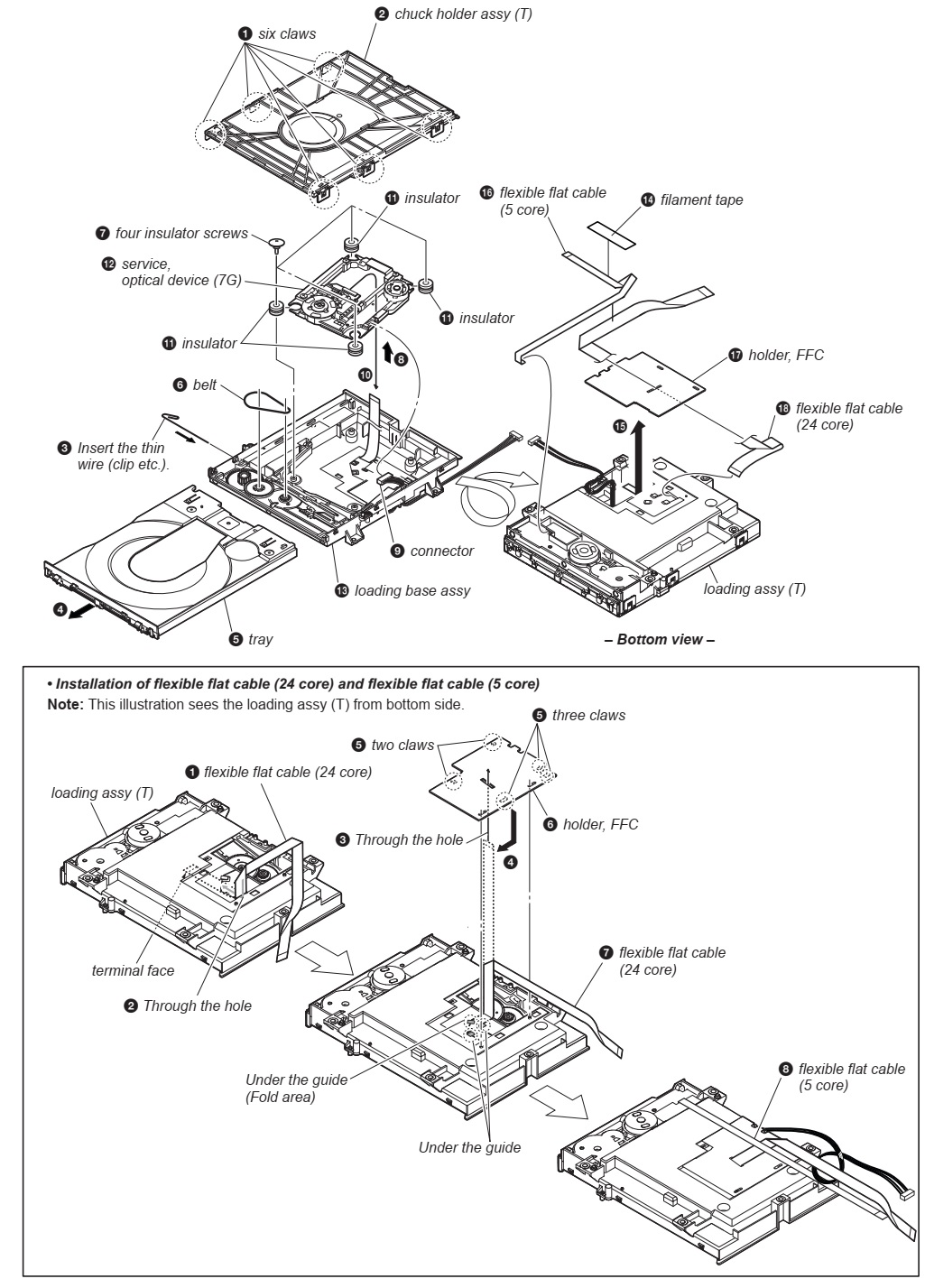
How to open the tray when power switch turn off/ How to take out the disc in emergency
Note 1: After the side panel L, R are removed, this work is done.
Note 2: prepare the thin wire (clip etc. processed to the length of 8 cm or more)

Remove side panel L, R.
Insert the clip etc. processed to the length of 8 cm or more in the hole on the side of the CDM and push. [Refer to the fig below]

Service position

Disassembly procedure of the side panel

Disassembly procedure of loading panel assembly

Disassembly procedure of the top panel [be very careful not to damage any of the flat cables, while tacking the assembly apart]

Rear cover & ventilation cover disassembly

Disassembly of the back panel section

Disassembly of the CDM section

Optical device [7G] & flexible cable service

Dismantling the Motherboard

SMPS/ the power board removal

Front panel [Vanilla] section disassembly

Bottom cover removal

Test modes

Panel test mode
This mode is used to check the screen display panel, LEDs, buttons, touch keys and GESTURE CONTROL sensor.
1. Press [Power] button to turn on the system.
2. Touch [
<] touch key and [MIC/GUITAR LEVEL -] touch key simultaneously for 3 seconds.
3. All LEDs and segments in screen display panel are lighted up.
This is the display check mode.
Touch [ > ] touch key repeatedly to toggle different display mode as below:
Segments on screen display panel:
All On → 1st Group On → 2nd Group On → All On → All Off
Single color LEDs:
All On → All Off → 1st Group On → 2nd Group On → All Off
Multi Color LEDs:
All On → Red → Green → Blue → All Off
4. Touch [0 - ] touch key, the key check mode is activated.
5. In the key check mode, the screen display panel displays “K 0”

Each time a button/touch key is pressed/touched, “K” value increases. However, once a button/touch key has been pressed/touched, it is no longer taken into account. After all the buttons and touch keys have been pressed/touched, “K”
value will toggle between “OK” and “K30”.
The screen display panel displays “<” or “>” or “U” or “u” on the right side of “K30 OK” each time swing left, right, up and down at GESTURE CONTROL.
6. To release from this mode, touch the touch keys in the same manner as step 2, or disconnect the power cord.

Model, destination and version display mode
This mode is used to check the model, destination and software version of the set.
1. Press [Power] button to turn on the system.
2. Touch [
<] touch key and [MIC/GUITAR LEVEL -] touch key simultaneously for 3 seconds.
All segments in screen display panel are lighted up.
3. Touch [ +] touch key. Model information appears on the screen display panel.
4. Touch [ +] touch key. Destination information appears on the screen display panel.
5. Touch [ +] touch key. Serial number appears on the screen display panel.
6. During serial number appears, touch [0 +] touch key. Each time [ +] touch key is touched, the screen display panel shows the version of each category software in the following sequence: SC, MTK, BT, BTE, PF, SUB and return back to
model information display.
7. Touch [
<] touch key and [MIC/GUITAR LEVEL -] touch key simultaneously for 3 seconds to exit.

User reset
The user reset clears all data including preset data stored in the data flash to initial conditions.
1. Press [Power] button to turn on the system.
2. Touch [GUITAR] touch key and [MEGA BASS] touch key simultaneously for 3 seconds.
3. “RESET” appears on the screen display panel. After that, the screen display panel becomes blank for a while, and the system goes to demo mode.

Cold reset
This mode is used to reset all the user settings to factory setting.
Execute this mode when returning the set to the customer.
1. Press [Power] button to turn on the system.
2. Touch [
<] touch key and [MIC/GUITAR LEVEL +] touch key simultaneously for 3 seconds.
3. “COLD RST” appears on the screen display panel. After that, “SONY DEMO” appears on the screen display panel. The system automatically turn on and off once. Please be sure that the system stays at demo mode finally before switch off the power supply.

Disc tray lock
When the disc tray does not open and “LOCKED” appears on the screen display panel, disc tray lock mode has been activated by the shop front.
To release from Disc Tray Lock Mode:
1. Press [Power] button to turn on the system.
2. Touch [FUNCTION] touch key repeatedly to select the DVD/CD function.
3. Touch [MEGA BASS] touch key and [VOCAL FADER] touch key simultaneously and hold down until “UNLOCKED” displayed on the screen display panel.

Shop front demo
The playback started automatically and the “ * DEMO * ” appears on the screen display panel.
This is the Shop Front Demo mode which is activated by the shop front.

Release from Shop Front Demo
1. Touch [
<] touch key and [MIC ECHO] touch key simultaneously for 5 seconds.
2. The message "STANDBY" appears on screen display panel.  After that, the screen display panel blinks for a few times and the system goes to demo mode.

SMPS board and fault diagnosis


Friday, 3 July 2020

How to disassemble Samsung HT H5500, HT H4500 – Home Theater System SMPS, Power board schematic

Power board [SMPS] schematic of Samsung HT H5500w, HT H4500, disassembly procedure

* Never defeat any of the B+ voltage interlocks.  Do not apply AC power to the unit (or any of its assemblies) unless all solid-state heat sinks are correctly installed.

* Do not remove a replacement ESD from its protective package until you are ready to install it.
Most replacement ESDs are packaged with leads that are electrically shorted together by conductive foam, aluminum foil or other conductive materials.

Disassembly and reassembly

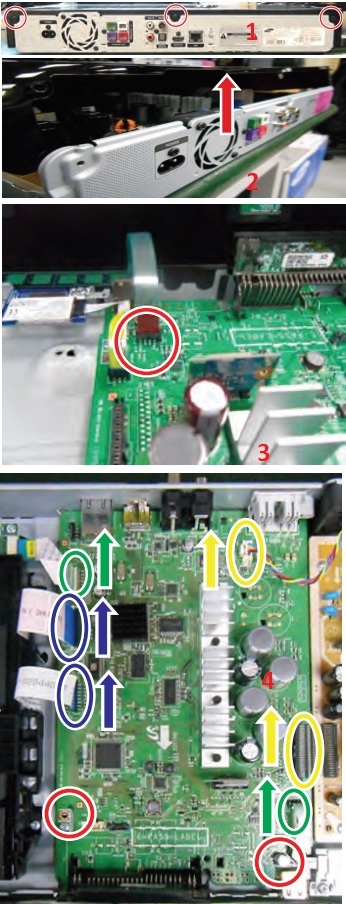
1. Unfasten 3 screws on the back. . BH,+,B,M3,L10,ZPC(BLK),SWRCH18A2

2. Lift the top cover.

3. Disconnect the FCC cable from Touch Key.

Disconnect 2 FFC cables between the Deck and Main.(blue)

Disconnect Fan Wire and SMPS Connector from the Main. (yellow)
4. Disconnect the RX Module from the Main.(green). Unfasten 2 screws on the MAIN PCB. BH,+,B,M3,L6,ZPC(WHT),SWRCH18A

5. Unfasten 3 screws on the back side.
BH,+,B,M3,L10,ZPC(BLK),SWRCH18A

6. Disassemble and lift the main board.

7. Unfasten the Assy-BT by pulling the Assy-BTup.(refer toi mage).  RemovetheAssy-BT.

8. Unfasten 2 screws on the DECK.
BH,+,B,M3,L6,ZPC(WHT),SWRCH18A
And push the locking points on the side.(refer to image)
Remove the Assy-DECK.

9. Unfasten 5 screws on the SMPS. :BH,+,B,M3,L6,ZPC(WHT),SWRCH18A

10. Unfasten 3 screws on the back side.  :BH,+,B,M3,L10,ZPC(BLK),SWRCH18A.  Remove the SMPS and FAN.

11. Unfasten 1screw on the Wireless RX module. :BH,+,B,M3,L6,ZPC(WHT),SWRCH18A.  Romove the Wireless RX module.

12. Unfasten 1screw on the Wi-Fi module.  :BH,+,B,M3,L10,ZPC(BLK),SWRCH18A.  Remove the Wi-Fi module.

SMPS (Power Board) schematic - Samsung [HTH4500]

SMPS (Power Board) Schematics - Samsung [HTH5500w]

Tuesday, 18 February 2020

Sony LCD digital color TV - KDL-46HX900, KDL-46HX900 KDL-52HX900- Service mode, error codes, service adjustments


KDL-46HX900- Hong Kong, KDL-52HX900 & KDL-46HX900-Australia- Remote control RM-GD012 - Error codes and details, how to enter the service mode, Service adjustments
The units  contain a self-diagnostic function. If an error occurs, the STANDBY LED will automatically begin to flash.
The number of times the LED flashes translates to a probable source of the problem.
A definition of the STANDBY LED flash indicators is listed in the instruction manual for the user’s knowledge and reference.
If an error symptom cannot be reproduced, the remote commander can be used to review the failure occurrence data stored in memory to reveal past problems and how often these problems occur.
Diagnostic test indicators
When an error occurs, the STANDBY LED will flash a set number.
of times to indicate the possible cause of the problem.
If there is more than one error, the LED will identify the first of the problem areas.
Result for all of the following diagnostic items are displayed on screen.
If the screen displays a “0”, no error has occurred.
self-diagnostic screen display
For errors with symptoms such as “power sometimes shuts off” or “screen sometimes goes out” that cannot be confirmed, it is possible to bring up past occurrences of failure for confirmation on the screen:
to bring up screen test
In standby mode, press buttons on the remote commander sequentially in rapid succession as shown below:
Since the diagnostic results displayed on the screen are not automatically cleared, always check the self-diagnostic screen.
After you have completed the repairs, clear the result display to “0”.
Clearing the Self Check Diagnostic List
Error history and Error count: Press the Channel 8 => Channel 0
Panel operation time: Press the Channel 7 > Channel 0.
Exiting the Self-diagnostic screen
Turn off the power to the TV by pressing the POWER button on the remote or the POWER button on the TV
How to entering service mode
1) Turn on the main power switch to place this set in standby mode.
2) Press the buttons on the remote commander as follows, and entering service mode.
Service mode display.
Note: First of all, when you enter Service Mode, you can see “Digital” service mode.
Whenever you press “OPTIONS” or “JUMP” on remote, each service mode is changed. “Digital”> “Chassis”> “Sub” > “PEM”
How to use the remote commander in Service Mode
After entering service mode, then turn off the power switch.
White balance adjustment
Execute this adjustment if necessary.
Change Data of “PEM” service mode.
a. Select
“010 WB_GAIN2_A categories by pressing “2 or 5” on remote.
b. Select “000” ~ “005” item by pressing “1or4” on remote.
c. Change data “0 ~ 255” by pressing “3 / 6” on remote.
d. Press “0” or “10” to save data.
It shows red “
WRITE”. 
It indicates writing is processing.
Writing process is done after a while. (Takes about a couple of seconds)
Save changing data
1) Change Data of “Chassis” or “Sub” or “PEM” service mode
2) Write data for “Chassis” or “Sub” or “PEM” service mode
a. Press “Mute” on remote.
It shows green “
SERVICE” changes to green “WRITE”.
b. Press “0” or “enter” on remote. Green “
WRITE” changes to red “WRITE”. It indicates writing is processing.
c. After a while, red “
WRITE” changes to green “SERVICE”. Writing process is done at this point.
3) TV reboot is necessary for applying data change.
Change data
Note: “Digital” service mode don’t have to Save. (Except “002 MODEL” category)
1) Change Data of “Digital” service mode. (
Except “003 DIG_SRV_MODE” category)
a. Press “2 / 5” on remote to select (up / down) category.
b. Press “1 / 4” on remote to select (up / down) Item.
c. Press “0 / 10” on remote to select item.
Change Data of “Digital” service mode. ( “003 DIG_SRV_MODE” category)
“003 DIG_SRV_MODE” is one category of “Digital” service mode.
Please note because this operation is special.
a. Press “2 / 5” on remote to select “003 DIG_SRV_MODE”.
b. Press “1 / 4” on remote to select (up / down) Item.
c. Press “0 / 10” on remote to select item.
d. Press number key “1”~”9” directly. “*” stamp move.
e. Press “12 / enter / select” to decide and advance next step. Press “return”, when returning on the previous page
Write data for “Digital” service mode. ( “002 MODEL” category)
Note: This procedure operation, when replaced the B board.
Note: Do not write a wrong segment or destination information in Product ID.
When the wrong setting is written, TV may not operate.
000 SEG ・・・ Product ID - segment information.
001 DEST
・・・ Product ID – destination information.
a. Change data for each model.
b. Press “0” or “enter” on remote.
It shows red “
WRITE”. It indicates writing is processing.
c. Writing process is done at this point.
Set to shipping condition
How to do shipping condition.
a. Move to “Digital” service mode.
Press “8” on remote.
It shows green “
SERVICE” changes to green “RST-”.
Press “mute” on remote.
Added green “
EXE” after green “RST-” .
d. Press “0” or “enter” on remote. Green “
EXE-RST” changes to red “EXE-RST”. It indicates writing is processing.
After a while, red “
EXE-RST” changes to green “SERVICE”.
And all LED lights.
Writing process is done at this point.
Another way
You can set to shipping condition w/o entering Service Mode.
> “Cursor Up” on remote + “Power Key” on Front panel of the TV.
Change the emitter output level [back-light fault]
Note: To reduce the emitter LED output power strength.
Change Data of “PEM” service mode.
a. Select
“009 3D” category by pressing “2 / 5” on remote.
b. Select “000 EMIT_STR items by pressing “1 / 4” on remote.
c. Change data from “0” to “1” by pressing “3 / 6” on remote.
0: Strong (Default)
1: Weak
d. Save & Reboot.