Wednesday, 23 June 2021

Sharp LC-19LE430E, LC-22LE430E, LC-26LE430E and LC-32LE430E Service mode, alignments, software update, troubleshooting


Sharp LED COLOUR TELEVISION LC-19LE430E/UK, LC-22LE430E/UK, LC-26LE430E/UK, LC-32LE430E/UK

Display adjustment
YPbPr Mode display adjustment
1 Auto color for signal slicering
1.1 General set-up
Equipment Requirements:
Konica Minolta CS-200 or equivalent instrument. Quantum Data Pattern Generator 881 or equivalent instrument.
Input requirements:
Input signal type: YPbPr signal
1. 1080i/25mode, TVBar100 pattern by QuantumData 881.
2. Select Picture mode to “Personal” mode and adjust the x, y data.
Input Signal Strength: 1 Vpp for Y signal ; 700 mVpp for Pb & Pr signal Input Injection Point: YPbPr (RAC jack) 1080i/25, TVBar100 pattern

Alignment method:
Initial Set-up:
1. Select source as “YPbPr”.
2. Set Smart Picture mode as “Personal” and then adjust Contrast = 58, Brightness=48, Color=58, backlight=100, set Color Temp. to be “cool” mode.
3. Apply “TVBar100” pattern which is color bar pattern by signal generator.
4. Enter “factory mode menu”: press MENU + Numeric keys “1999”+ press PRE PR.
Alignment:
1. At factory mode menu, select AUTO_COLOR item. Then press “OK” key of remote control to adjust ADC_GAIN_R, ADC_GAIN_G,
ADC-GAIN-B and ADC-OFFSET-R, ADC-OFFSET-G, ADC-OFFSET-B. Then store those values to NVM.
2. Check the 16 grayscale pattern should be distinguished and color bar is correct
3. Reset AV setting, picture mode shall be recalled to be “Vivid” and Contrast=58, Brightness=48; Color=58.
Note:
Sharp EU 2k11 models have no need to operate “AUTO_COLOR” function, due to EFUSE is set “Disable” within NVM for defult. These ADC values will be produced by Main chip (MT5363) internal definition.

White balance adjustment
Alignment method:
Initial Set-up:
1. Select source as “YPbPr”.
2. Set Contrast = 58 and Brightness=48, Color=58, backlight=100, at normal menu mode.
3. Apply “80% white pattern or Flat 80 pattern by Component video generator.
4. Enter factory mode menu: press MENU + Numeric keys “1999” + press PRE PR

Alignment:
1. Apply Flat80 pattern (80% white pattern).
2. Set color temperature to “NORMAL”.
3. At factory mode menu, adjust the Scaler R Gain, Scaler G Gain, Scaler B Gain values to meet “NORMAL” color coordinates specification below. Then store those values to NVM
4. Set color temperature to “COOL”.
5. At factory mode menu, adjust the Scaler R Gain, Scaler G Gain, Scaler B Gain values to meet “COOL” color coordinates specification below.  Then store those values to NVM
6. Set color temperature to “WARM”.
7. At factory mode menu, adjust the Scaler R Gain, Scaler G Gain, Scaler B Gain values to meet “WARM” color coordinates specification below. Then store those values to NVM
Color temperature Normal/Warm/Cool (x, y) co-ordinates specification:

1. Use Konica Minolta CS-200 for color coordinates and luminance check.
2. For suitable mass production at factory, colour analyzers CA-210 can be applied. But, befor measureing ,all CA-210 should be
coordinates and proofread with a Charoma Meter (CS-200) or equivalent instrument and a reference TV set.

3.

Check the luminance at the center of the screen with 100% White. And to set Brightness control at 100; Contrast control at 100; backlight
control at 100.

Luminance

> 200 cd/m2 (Typ.) [ For LC-19LE430E only at color temp.- *warm mode ]
> 200 cd/m2 (Typ.) [ For LC-22LE430E only at color temp.- *warm mode ]

> 400 cd/m2 (Typ.) [ For LC-26LE430E only at color temp.- cool mode ]
> 450 cd/m2 (Typ.) [ For LC-32LE430E only at color temp.- cool mode ]
> 450 cd/m2 (Typ.) [ For LC-37LE320E/RU/E(UK) only at color temp.- cool mode ]
> 450 cd/m2 (Typ.) [ For LC-42LE320E/RU/E(UK) only at color temp.- cool mode ]
4. The defult values of Scaler R Gain, Scaler G Gain, Scaler B Gain are all 128. When panel WD is made adjustment, the three values could not be over 128. That is preventing color saturation after adjusting Contrast and Brightness setting at main menu.

PC mode display adjustment
1. Display quality adjustment
Use timing mode as describe in 2.2, and use the POPO (pixel on pixel off) pattern to adjust the clock until no stripe and adjust the phase until clear picture.(“Auto” will be done every time switching to PC mode and mode change) Check all preset 7 modes.
2. Auto color for signal slicering (B)
2.1 General set-up
Equipment Requirements:
Konica Minolta CS-200 or Equivalent Color analyzer. Chroma 2250 or equivalent PC signal generator.
Input requirements:
Input Signal Type:
PC VGA signal
1. 1024X7684/60Hz PC mode with ”5 white block” pattern. (see pattern-1) Input Signal Strength: 0.7 Vp-p linear voltage.
Input Injection Point:
PC D-SUB input

Alignment method:
Initial Set-up:
1. Select source as “PC”.
2. Set Contrast = 58 (Sharp) and Brightness=100 (Sharp) , at normal menu mode.
3. Apply “5 white block”(pattern-1) pattern by VGA pattern generator.
4. Enter factory mode menu: press MENU + Numeric keys “1999” + press PRE PR (factory mode menu).
Alignment:
At factory mode menu, select AUTO_COLOR item. Then press “OK” key to adjust ADC-GAIN-R, ADC-GAIN-G, ADC-GAIN-B and
ADC-OFFSET-R, ADC-OFFSET-G, ADC-OFFSET-B. Then store those values to NVM.
Set Contrast = 100 (Sharp) and Brightness=100 (Sharp)
Check color temperature specification with PC mode.
Color temperature Normal/Warm/Cool (x, y) co-ordinates specification:

1. Use Konica Minolta CS-200. for color coordinates and luminance check.
2. For suitable mass production at factory, colour analyzers CA-210 can be applied. But, before measuring ,all CA-210 should be coordinates and proofread with a Charoma Meter (CS-200) or equivalent instrument and a reference TV set.
3. Check the luminance in the center of the screen with 100% White. And to Brightness control at 100; Contrast control at 100

Luminance

> 200 cd/m2 (Typ.) [ For LC-19LE430E only at color temp.- *warm mode ]
> 200 cd/m2 (Typ.) [ For LC-22LE430E only at color temp.-*warm mode ]

> 400 cd/m2 (Typ.) [ For LC-26LE430E only at color temp.- cool mode ]
>450 cd/m2 (Typ.) [ For LC-32LE430E only at color temp.- cool mode ]
> 450 cd/m2 (Typ.) [ For LC-37LE320E/RU/E(UK) only at color temp.- cool mode ]
> 450 cd/m2 (Typ.) [ For LC-42LE320E/RU/E(UK) only at color temp.- cool mode ]

SERVICE MODE LC-19LE430E/UK, LC-22LE430E/UK, LC-26LE430E/UK, LC-32LE430E/UK

Press MENU + Numeric keys “1999” + press PRE PR to enter factory mode.

SOFTWARE UPGRADE PROCEDURE

TROUBLESHOOTING TABLES


Wednesday, 12 May 2021

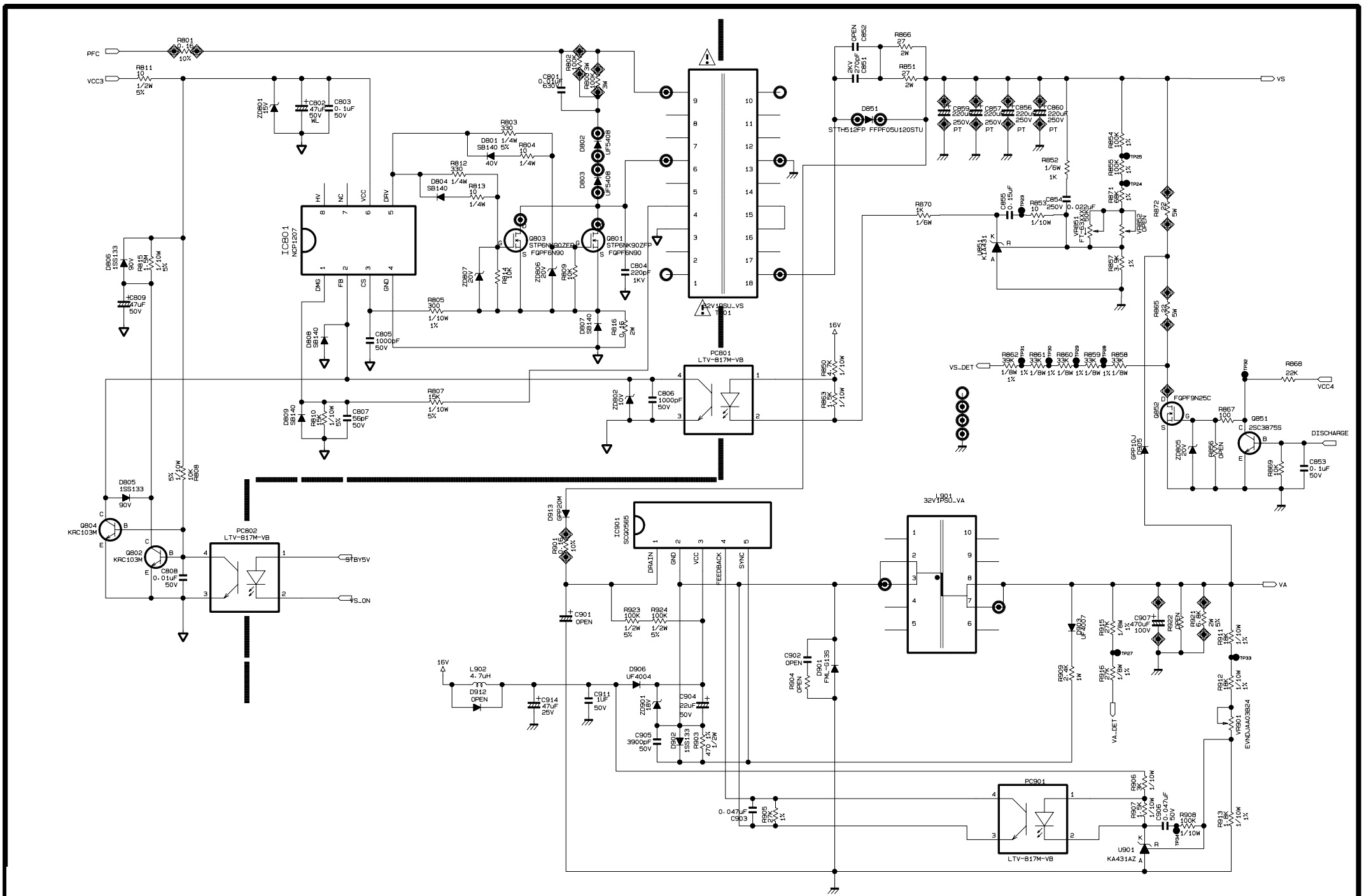
LG LCD TV power supply board – EAY38730101 and Samsung LCD TV Power supply board BN4400422B schematic


EAY38730101-32F1-LG-SMPS SCHEMATIC

Used ICs: FA5501AN, MC80F0308, NCP1271B, STP6NK90ZEP, NCP1207


BN44-00422B Samsung SMPS schematic


How to do a reset [Hard Reset] - Philips 32HFL5014-12 TV 81.3 cm (32") Full HD Smart TV Wi-Fi Black and Philips 32PFS5803-12.


If 32HFL5014/12 works very slow, it hangs, or you have a full memory and you want to erase everything, or you want to sell it or give it away and you want nobody to be able to access your history and passwords you can do a factory reset or format so that it returns to be like the first day.


IMPORTANT: Formatting or resetting your Philips 32HFL5014/12 to its factory state will eliminate all the personalized settings of the television such as the tuned channels and their order, input names, applications that have been installed, passwords of the accounts linked to this 32HFL5014/12, Wi-Fi passwords, Google Play user and web browsing history. The Philips 32HFL5014/12 TV will need to be fully configured as when it was turned on for the first time after purchase.


* Go to the start menu of Philips 32HFL5014/12 TV 81.3 cm (32") Full HD Smart TV Wi-Fi Black TV,  go to the settings; it is the gear wheel icon in the upper right part of the screen of your Philips 32HFL5014/12 TV 81.3 cm (32") Full HD Smart TV Wi-Fi Black:

* Navigate through the menu of the 32HFL5014/12 TV and find the section called "Storage and reset", press to access the storage settings and factory restore.

* Once inside the Philips 32HFL5014/12 Storage and reset settings, we look for the "Factory data reset" section with our remote or cursor and click on it.
* A confirmation message will appear on the screen of the Philips 32HFL5014/12 indicating that all the information on the television 32HFL5014/12 will be earased, including the settings, the downloaded applications and the link with your Google account (the Google account is not earased only unlinked from the TV), click on "Factory data reset" again, if you have decided not to continue click "Cancel" and no data will be erased.
* A second confirmation message will appear to confirm that you want to restore the Philips 32HFL5014/12; from this step you cannot go back, all apps and settings will be removed from the TV.

 Press "Erase everything" to finish and wait a few seconds.

Will  take some time to finish the reset.

Hard Reset PHILIPS TV 32PFS5803/12

If you want to restore default settings on PHILIPS 32PFS5803/12,  perform the hard reset operation. As a result, you will delete all personal info, customized settings and installed apps on your PHILIPS 32PFS5803/12. Check out how to hard reset PHILIPS 32PFS5803/12 and wipe all personal data from the TV. It's the easiest way to bring back the default software configuration.

* Press the Power button on the remote controller.

* After the TV turns on, press the Settings button on the remote control.

* When the menu opens, use the Arrow buttons on the remote to move around the menu.

* Select All settings and press the OK button on the remote.

* Scroll down and select General settings and press the Arrow right button to Enter.

If asked for a PIN Enter Yours.  

* Select "Yes" and press the OK button on the remote to confirm.


Thursday, 22 April 2021

Philips 22PFT4232, 43PFT4112, 32PHS4112, 32PHT4112, 39PHT4112 Chassis TPN17.1E LA. Platform NT72461- How to enter the service mode, SMPS schematics


Applicable to:

22PFT4232/12

32PFS4132/12

32PFT4132/05

32PFT4132/12

32PFT4132/60

32PHS4132/12

32PHT4132/05

32PHT4132/12

32PHT4132/60

43PFS4132/12

43PFT4132/05

43PFT4132/12

43PFT4132/60

49PFS4132/12

49PFT4132/12

32PHS4112/12

32PHT4112/05

32PHT4112/12

39PHS4112/12

39PHT4112/05

39PHT4112/12

43PFS4112/12

43PFT4112/05

43PFT4112/12

4PFS4032/12

24PFT4032/12

24PFT4032/60

24PHS4032/12

24PHT4032/05

24PHT4032/12

24PHT4032/60

32PHS4032/12

32PHT4032/05

32PHT4032/12

32PHT4032/60

22PFS4022/12

22PFT4022/05

22PFT4022/12

22PFT4022/60

24PFS4022/12

24PFT4022/12

24PFT4022/60

24PHS4022/12

24PHT4022/05

24PHT4022/12

Service Modes
The Service Mode feature is split into following parts:
Service Alignment Mode (SAM).
Factory Mode.
Customer Service Mode (CSM).

SAM and the Factory mode offer features, which can be used by the Service engineer to repair/align a TV set. Some features are:
Make alignments (e.g. White Tone), reset the error buffer(SAM and Factory Mode).
Display information (“SAM” indication in upper right corner of screen, error buffer, software version, operating hours,options and option codes, sub menus).

The CSM is a Service Mode that can be enabled by the consumer. 

The CSM displays diagnosis information, which the customer can forward to the dealer or call centre. In CSM mode, “CSM”, is displayed in the top right corner of the screen. 

The information provided in CSM and the purpose of CSM is to:
Increase the home repair hit rate.
Decrease the number of nuisance calls.
Solved customers’ problem without home visit.
Note: For the new model range, a new remote control (RC) is used with some renamed buttons. This has an impact on the activation of the Service modes.
For instance the old “MENU” button is now called “HOME” (or is indicated by a “house” icon).
Service Alignment Mode (SAM)
Specifications
Operation hours counter (maximum five digits displayed).
Software version, error codes, and option settings display.
Error buffer clearing.
Option settings.
Software alignments (White Tone).
NVM Editor.
Set screen mode to full screen (all content is visible).
How to Activate SAM
To activate SAM, use one of the following methods:
Press the following key sequence on the remote control transmitter:
062596, directly followed by the “INFO/OK” button. Do not allow the display to time out between entries while keying the sequence.
Or via ComPair.
After entering SAM, the following items are displayed,
with “SAM” in the upper right corner of the screen to indicate that the television is in Service Alignment Mode.
How to Navigate
In the SAM menu, select menu items with the UP/DOWN keys on the remote control transmitter. The selected item will be indicated. When not all menu items fit on the screen, use the UP/DOWN keys to display the next/previous menu items.
With the “LEFT/RIGHT” keys, it is possible to:
(De) activate the selected menu item.
(De) activate the selected sub menu.
Change the value of the selected menu item.

How to Store SAM Settings
To store the settings changed in SAM mode (except the RGB Align settings), leave the top level SAM menu by using the POWER button on the remote control transmitter or the television set. The mentioned exceptions must be stored separately via the STORE button.
How to Exit SAM
Use one of the following methods:
Switch the set to STANDBY by pressing the mains button on the remote control transmitter or the television set.
Via a standard RC-transmitter, key in “00” sequence.
Note: When the TV is switched “off” by a power interrupt while in SAM, the TV will show up in “normal operation mode” as soon as the power is supplied
again. The error buffer will not be cleared.
SAM mode overview


Factory mode:
Displaying and or changing Panel ID information.
Displaying and or changing Tuner ID information.
Error buffer clearing.
Various software alignment settings.
Testpattern displaying.
Public Broadcasting Service password Reset. etc.
How to Activate the Factory mode
To activate the Factory mode, use the following method:
Press the following key sequence on the remote control transmitter: from the “menu/home” press
1999, directly followed by the “Back/Return” button.
Do not allow the display to time out between entries while keying the sequence.
After entering the Factory mode, we can see many items displayed, use the UP/DOWN keys to display the next/previous menu items

How to Exit the Factory mode
Use one of the following methods:
Select EXIT-FACTORY from the menu and press the “OK” button.
Note: When the TV is switched “off” by a power interrupt, or normal switch to “stand-by” while in the factory mode, the TV will show up in “normal operation
mode” as soon as the power is supplied again. The error buffer will not be cleared.
Customer Service Mode (CSM)
Purpose
The Customer Service Mode shows error codes and information on the TVs operation settings.The call centre can instruct the customer (by telephone) to enter CSM in order to identify the status of the set.This helps the call centre to diagnose problems and failures in the TV set before making a service call. The CSM is a read-only mode; therefore, modifications are not possible in this mode.
Specifications
Ignore “Service unfriendly modes”.
Line number for every line (to make CSM language independent).
Set the screen mode to full screen (all contents on screen is visible).
After leaving the Customer Service Mode, the original settings are restored.
Possibility to use “CH+” or “CH-” for channel surfing, or enter the specific channel number on the RC.
How to Activate CSM
To activate CSM, press the following key sequence on a standard remote control transmitter: “123654” (do not allow the display to time out between entries while keying the sequence). After entering the Customer Service Mode, the following items are displayed. use the Right/Left keys to display the next/previous menu items
Note: Activation of the CSM is only possible if there is no (user) menu on the screen.

How to Navigate
By means of the “CURSOR-DOWN/UP” knob (or the scroll wheel) on the RC-transmitter, can be navigated through the menus.
How to Exit CSM
To exit CSM, use one of the following methods.
Press the MENU/HOME button on the remote control transmitter.
Press the POWER button on the remote control transmitter.
Press the POWER button on the television set.

Software Upgrading, Error code and Panel Code
Software Upgrading.
The following update is for .pkg file.
1. Rename the file to “upgrade_loader.pkg”
2. Prepare a USB memory.
3. Copy the software to USB flash disk(root directory).
4. Switch off the TV and Insert the USB memory stick that contains the software update files in one of the TV’s USB 2.0 ports.
Note: It contains USB3.0 port, if connect on it, the software may can’t be detected.
5. Switch on the TV. The TV will detect the USB memory s tick automatically.

6. When the TV software is updated, the TV will turn on again automatically. Remove your USB flash drive.
7. We can enter in CSM or Factory mode to check the current software version.
The following update is for .upg file.
Step 1: Ready for F/W Upgrade
1. Prepare a USB memory.
2. Copy the software to USB flash disk(root directory).
Note the version of this F/W before you change the software file name.

Step 2: F/W Upgrade
1. Plug the USB memory on the USB port on the side I/O port of TV (Please connect to USB 2.0 port, not recommend USB3.0 port)
2. AC on (Power plug)
3. TV will show message. Press [Start] to detect the software automatically

4. Press [Start] to start software upgrade

5. Upgrade in progress.
6. After software upgrade complete, select [Restart] to reboot TV.

Step 3: Check the SW version
1. After burning software, TV will restart
2. Press “Menu+1999+back”, enter Factory mode to check if the software version is correct
Caution: Make sure that software upgrade is finished before unplug the USB and AC power!

Error codes

Error codes are required to indicate failures in the TV set. In principle a unique error code is available for every:
• Activated (SW) protection.
• Failing I2C device.
• General I2C error.
The last five errors, stored in the NVM, are shown in the Service menu’s. This is called the error buffer.
The error code buffer contains all errors detected since the last time the buffer was erased. The buffer is written from left to right. When an error occurs that is not yet in the error code buffer, it is displayed at the left side and all other errors shift one position to the right.
An error will be added to the buffer if this error differs from any error in the buffer. The last found error is displayed on the left.
An error with a designated error code never leads to a deadlock situation. It must always be diagnosable (e.g. error buffer via OSD or blinking LED).
In case a failure identified by an error code automatically results in other error codes (cause and effect), only the error code of the MAIN failure is displayed.
How to Read the Error Buffer
You can read the error buffer in three ways:
• On screen via the SAM/CSM (if you have a picture).
Example:
ERROR: 000 000 000 000 000: No errors detected
ERROR: 013 000 000 000 000: Error code 13 is the last and only detected error
ERROR: 034 013 000 000 000: Error code 13 was detected first and error code 34 is the last detected (newest) error
• Via the blinking LED procedure (when you have no picture)

In this chassis only “layer 2” error codes are available and point to problems on the SSB. They are triggered by LED blinking when CSM is activated. Only the following layer 2 errors are defined:


How to Clear the Error Buffer
The error code buffer is cleared in the following cases:
• By using the CLEAR command in the SAM menu
• By using the CLEAR command in the Factory mode:
• By using the following key sequence on the remote control transmitter: “062599” directly followed by the OK button.
• If the contents of the error buffer have not changed for 50 hours, the error buffer resets automatically.
Note: If you exit SAM by disconnecting the mains from the television set, the error buffer is not reset.
Panel Code.
Press the following key sequence on a standard RC transmitter: “062598” directly followed by MENU and “xxx”, where “xxx” is a 3 digit decimal value of the
panel type: see column “Display Code” in below tab. After resetting the Display Code, restart the set immediately.


Power Supply Unit.
All power supplies are a black box for Service. When defective, a new board must be ordered and the defective one must be returned, unless the main fuse
of the board is broken. Always replace a defective fuse with one with the correct specifications! This part is available in the regular market.
Consult the Philips Service web portal for the order codes of the boards.
Important delta’s with the platform are:
• New power architecture for LED backlight
• “Boost”-signal is now a PWM-signal + continuous variable
The control signals are:
• PS-ON
• Lamp “on/off”
• DIM (PWM) (not for PSDL)
In this manual, no detailed information is available because of design protection issues.
• +8.5V output (standby mode)
• +12 output (on-mode)
• +12V_audio (audio AMP power)
• Output to the display; in case of
- IPB: High voltage to the LCD panel
- PSL and PSLS (LED-driver outputs)
- PSDL (high frequent) AC-current.

DC/DC Converters.
The on-board DC/DC converters deliver the following voltages(depending on set execution):
• +3V3-SB, permanent voltage for the Stand-by Power system
• +3V3-STANDBY,voltage for IR/Key board
• +12V, input from the power supply for the panel common(active mode)
• 12V, input from the power supply for LNB supply
• +3V3-EMMC, voltage for EMMC when TV on
• TUNER_3V3, supply voltage for tuner
• +5V-SW, input intermediate supply voltage for USB Power
• +12V-AUDIO1 for the AUDIO AMP
• +3.3VA_T2, voltage for Demodulator IC channel decoder

Power layout SSB / M+P BOARD.
715G8659M BOARD (For 4232 & 4132 & 4032 & 4022 Series)


Schematic


715G8991C BOARD (For 43”4112 Series)


715G9040C BOARD (For 32”4112 Series)


715G9216C BOARD (For 39”4112 Series)